Knowing how to back up business data is one of those jobs that feels optional until the day a laptop dies, a client file gets overwritten or ransomware locks every folder on your network. For a small business, freelancer or agency, losing invoices, contracts or customer records can mean days of lost work, unhappy clients and even compliance trouble. The good news is that a solid backup setup is neither expensive nor complicated once you know what to protect and how.
✔ Key takeaways
- Follow the 3-2-1 rule: three copies of your data, on two different types of storage, with one copy kept offsite (usually in the cloud).
- Back up more than files. Email, accounting records, your website and SaaS tools such as your CRM need their own plan.
- Automate every backup you can. Manual backups are the first habit to slip when you get busy.
- A backup only counts once you have restored from it. Test a restore at least once a quarter.
- Under GDPR, keep personal data only as long as you need it, and make sure backups are encrypted and access-controlled.
📋 In this guide
- Why backing up business data matters
- The 3-2-1 backup rule, explained simply
- What business data to back up
- Local vs cloud backup: which do you need?
- Automate your backups and test restores
- Protecting backups from ransomware
- GDPR, retention and backups
- A simple 7-step backup plan
- Tools to consider
- Frequently Asked Questions
- Final thoughts
Why backing up business data matters
Most data loss in small companies is boring rather than dramatic. A file gets deleted by mistake, a sync tool copies an empty folder over a full one, a phone is left in a taxi, or a shared drive fills up and stops saving. Then there are the bigger threats: hardware failure, theft, fire, flooding and ransomware.
Whatever the cause, the cost is the same: time spent recreating work, money spent on recovery and trust lost with clients. If you keep careful financial records (see my guide to business record keeping), a backup is what keeps those records safe when something goes wrong.
📌 Sync is not backup
Tools that sync a folder across devices are brilliant for working together, but if you delete or corrupt a file, the sync faithfully copies that mistake everywhere. A real backup keeps older versions you can go back to.
The 3-2-1 backup rule, explained simply
The 3-2-1 rule is the simplest way to understand how to back up business data properly. It has been around for years because it works for a one-person business and a 50-person team alike.
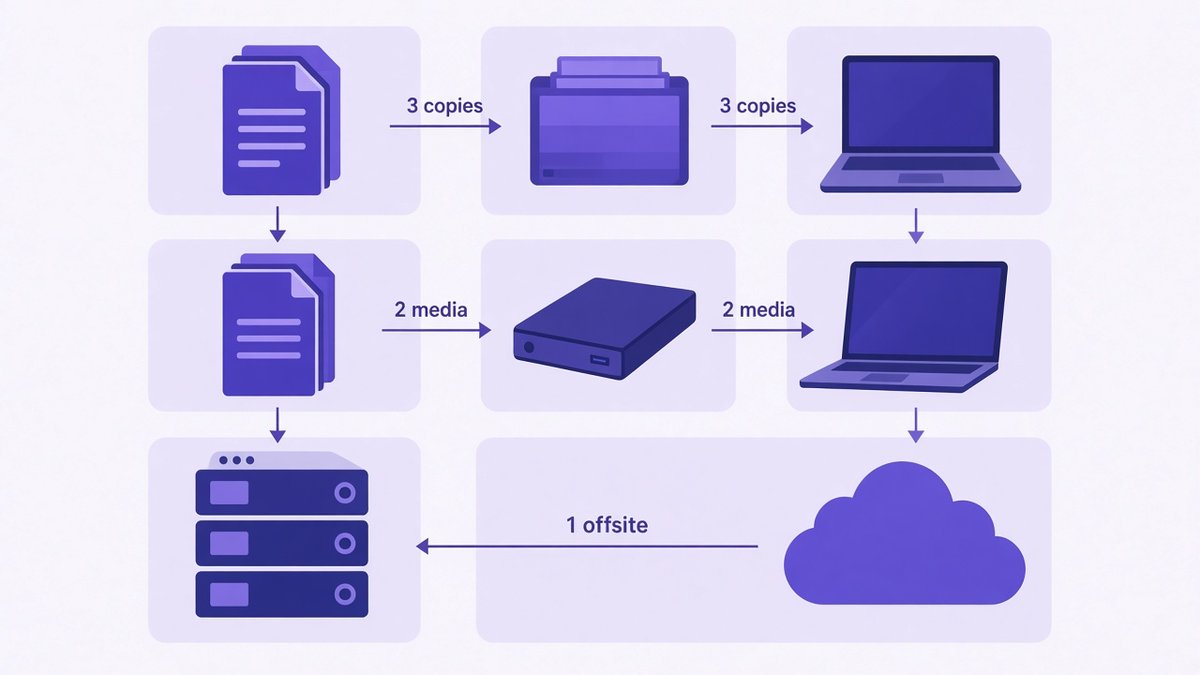
The 3-2-1 rule: three copies, two types of storage, one copy offsite.
- 3 copies of your data: the original you work on plus two backups.
- 2 different types of storage: for example your laptop’s internal drive and an external drive or NAS (network storage box).
- 1 copy offsite: usually encrypted cloud storage, so a fire, flood or burglary at the office cannot take every copy at once.
Many IT teams now add an extra layer, sometimes called 3-2-1-1-0: one copy that is offline or immutable (it cannot be changed or deleted for a set time) and zero errors when you test a restore. For a small business, the core 3-2-1 setup plus regular restore tests already puts you ahead of most competitors.
💡 A cheap starting point
If you have nothing in place today, start with an external drive for local copies and one cloud backup service. That already gives you three copies in two places.
What business data to back up
Before you choose tools, list what you actually need to protect. Here is a checklist that covers most small businesses:
| Data type | Examples | How to back it up |
|---|---|---|
| Files and documents | Contracts, proposals, designs, spreadsheets | Cloud backup or sync with version history, plus a local copy |
| Client conversations, approvals, receipts | Export or a third-party backup for your email provider; do not rely on the inbox alone | |
| Accounting data | Invoices, ledgers, payroll, tax files | Regular exports (CSV/PDF) from your accounting software, stored with your documents |
| Website | WordPress files, database, media uploads | Host backups plus your own off-host copy, for example a backup plugin sending to cloud storage |
| SaaS data | CRM contacts, project boards, email marketing lists | Scheduled exports or the tool’s own backup feature |
| Passwords and access | Admin logins, 2FA recovery codes | A password manager with secure emergency access |
| Processes | How-to guides, checklists | Keep written standard operating procedures inside your backed-up folders |
SaaS data is the one most owners forget. Cloud apps keep their own systems running, but they generally expect you to protect against your own mistakes, such as a team member deleting a pipeline or a bad import overwriting contacts. Check each tool’s export options and restore window, and add a monthly export to your calendar if there is no built-in backup.
Local vs cloud backup: which do you need?
You need both. Local backups are fast to restore from, and cloud backups protect you when the whole office, or the laptop bag, is the problem.
| Local backup (external drive, NAS) | Cloud backup | |
|---|---|---|
| Restore speed | Very fast for large files | Depends on your internet speed |
| Protection from fire or theft | No, unless stored elsewhere | Yes, data is offsite |
| Running cost | One-off hardware cost | Subscription or one-time plan |
| Ransomware risk | High if the drive stays plugged in | Lower with version history and encryption |
| Effort | You must remember to connect and rotate drives | Runs automatically in the background |
For the cloud copy, look for version history (the ability to restore older versions of a file), a recovery window for deleted files, client-side encryption for sensitive data and, if you serve customers in Europe, the option to store data in the EU.
Automate your backups and test restores
The best backup is the one that happens without you. Set every backup to run on a schedule, then put a recurring reminder in your calendar to check it.
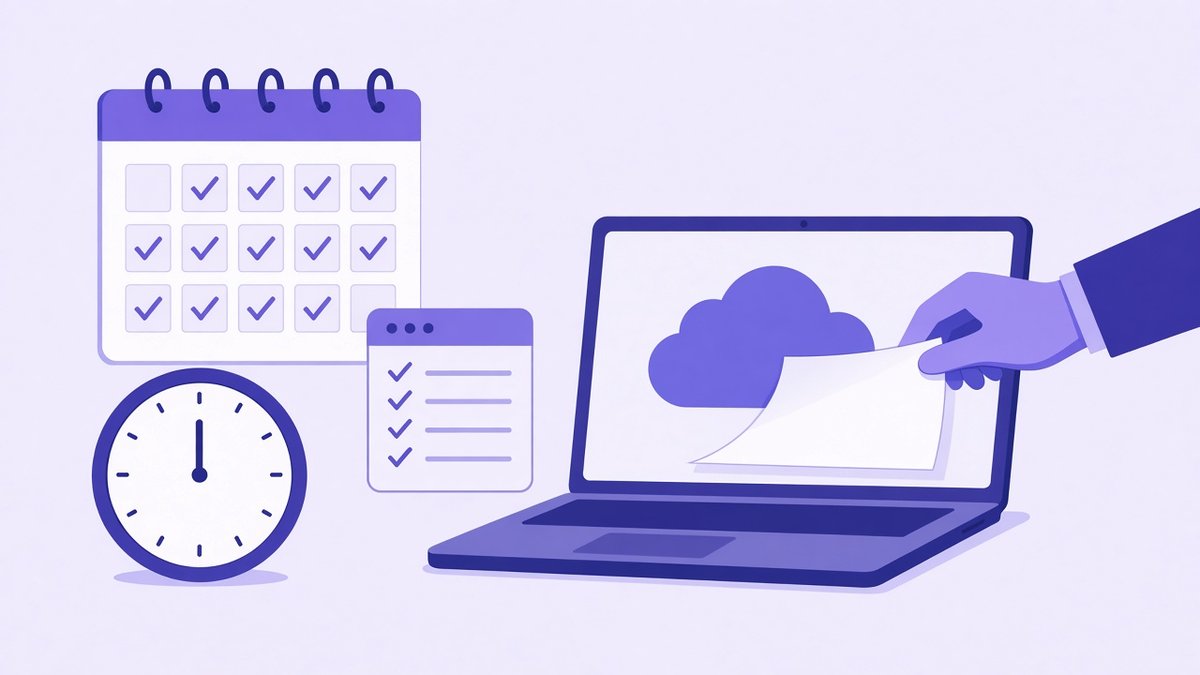
Schedule backups, then prove they work with a test restore.
- Daily: automatic cloud backup or sync of working files, plus your website database.
- Weekly: a full copy to your external drive or NAS, and exports from key SaaS tools.
- Monthly: accounting exports and a quick check that each backup job actually ran.
- Quarterly: a real test restore of a folder, a mailbox and your website to a test location.
A test restore is where most plans fail. Pick one random file and one full folder, restore them to a different location and open them. Time how long it takes. If a full restore of your critical files would take two days, you need to know that now, not during an emergency. Track this alongside your other small business KPIs, such as the date of the last successful restore test.
⚠️ Watch out for silent failures
Backup apps can stop working after a password change, a full disk or an expired card. Turn on email alerts for failed jobs and read them.
Protecting backups from ransomware
Ransomware encrypts your files and demands payment to unlock them. Modern attacks also hunt for backups on the same network, so a drive that stays plugged in is not enough protection on its own.
- Keep at least one copy offline or disconnected when it is not in use.
- Use cloud storage with version history so you can roll files back to before the attack.
- Turn on two-factor authentication for every backup and cloud account.
- Limit who can delete backups. Most staff need to save files, not erase archives.
- Keep operating systems, plugins and apps updated, and train your team to spot phishing emails.
If you are hit, disconnect affected machines, do not pay before getting expert advice, and report the incident to the relevant authority. In the UK, US and EU there are national cyber security agencies with free guidance for small firms.
GDPR, retention and backups
If you handle personal data of people in the UK or EU, GDPR applies to your backups as well as your live systems. Three principles matter most:
- Storage limitation: keep personal data only as long as you need it. Set a retention period for backups, for example 30 or 90 days of versions, and let older copies expire.
- Security: encrypt backups, protect them with strong passwords and 2FA, and restrict access.
- Data location and processors: know where your backup provider stores data, and have a data processing agreement in place. EU data centres can make transfers simpler.
When someone asks you to delete their data, you usually do not have to rebuild every old backup straight away. A common approach is to make sure the deleted data is not restored into live systems and to let it expire with the normal retention cycle. Write your approach down in your privacy policy and internal processes, and get legal advice for your specific situation.
📌 Not legal advice
This section is a practical overview, not legal advice. Retention rules for tax and employment records also vary by country, so check what applies to you.
A simple 7-step backup plan
Here is a plan you can finish in an afternoon. Assign each step to someone by name; if you are a team, my guide on how to delegate tasks effectively will help.
List your critical data
Write down every place business data lives: laptops, phones, email, accounting, website, CRM and other SaaS tools.
Rank by impact
Mark what would hurt most to lose for one day and for one week. Back these up first.
Set up the local copy
Buy an external drive or NAS and schedule a weekly full backup with your operating system’s built-in tool.
Set up the offsite cloud copy
Choose encrypted cloud storage with version history and automatic upload, and turn on 2FA.
Cover email, website and SaaS
Enable website backups that go off-host, and schedule exports for email, accounting and your CRM.
Test a restore
Restore a folder and your website to a test location, and note how long it took.
Document and review
Write the process down, add it to your onboarding pack for new staff and review it every quarter.
Tools to consider
For local copies, the built-in tools are a solid start: File History on Windows and Time Machine on Mac. For the offsite copy, compare features and prices carefully. I put the main options side by side in my guide to the best cloud storage for small business, and you can browse more of my tool reviews.
Personally, I use pCloud and pay for a 10 TB plan myself. It is a Swiss company with an EU data centre option, it keeps file version history, and it offers optional client-side encryption, called pCloud Encryption, so files are encrypted on your device before upload. When I checked pCloud’s site on 23 October 2026, the encryption add-on was listed as a one-time lifetime purchase, and teams can try pCloud Business with a 30-day free trial. Plans and promotional prices change, so check current pricing before you buy.
Other well-known options include Backblaze for computer backup, Dropbox for team file sharing, and the storage built into Microsoft 365 or Google Workspace if you already pay for one of them. Whichever you pick, the 3-2-1 rule still applies: one provider alone is not a full backup strategy.
Frequently Asked Questions
What is the best way to back up business data?
Follow the 3-2-1 rule: keep three copies of your data on two different types of storage, with one copy offsite, usually in encrypted cloud storage. Automate the backups and test a restore every quarter.
How often should a small business back up data?
Back up working files and your website at least daily, make a full local copy weekly, and export accounting and SaaS data monthly. Busy teams often back up files continuously.
Is cloud storage enough as a business backup?
Not on its own. Cloud storage is a great offsite copy, but you should also keep a local copy for fast restores and make sure version history is turned on so mistakes and ransomware can be rolled back.
Do I need to back up Microsoft 365 or Google Workspace?
It is a good idea. These services keep their platforms running, but deleted items are only recoverable for a limited time, so many businesses add exports or a separate backup.
How long should I keep backups under GDPR?
Only as long as you need them for a clear purpose. Many small businesses keep 30 to 90 days of versions plus any records required by tax law, and let older backups expire automatically.
How do I protect backups from ransomware?
Keep one copy offline or disconnected, use cloud storage with version history, turn on two-factor authentication and limit who can delete backups.
Final thoughts
Learning how to back up business data comes down to a few habits: follow the 3-2-1 rule, cover every place your data lives, automate the work and prove it with regular test restores. Set it up once this week, review it every quarter, and a dead laptop or a ransomware email becomes an inconvenience instead of a crisis.
If you are building out your operations, pair this with a clear client onboarding process so new client files land in your backed-up folders from day one.
Protect your business files with pCloud
Encrypted cloud storage with version history, an EU data centre option and lifetime plans. It is what I use for my own files.
Prefer to test the apps first? try it free first.
Affiliate links. I may earn a commission at no extra cost to you.
Affiliate disclosure: some links in this post are affiliate links, so I may earn a commission at no extra cost to you. I only recommend tools I’d use myself.